 Semrush tutorial
How to Find Keyword Cannibalization in Semrush
Learn how to find keyword cannibalization in Semrush, including the settings to confirm before you use the result.
Quick answer
The quick answer
find tracked keywords where multiple pages compete in Semrush Position Tracking Start in Position Tracking > Cannibalization report, use the settings that match the question you are answering, and validate the result before changing a campaign, report, or website.
Visual guide
The Semrush path
Click through the real product screens used in the steps below.
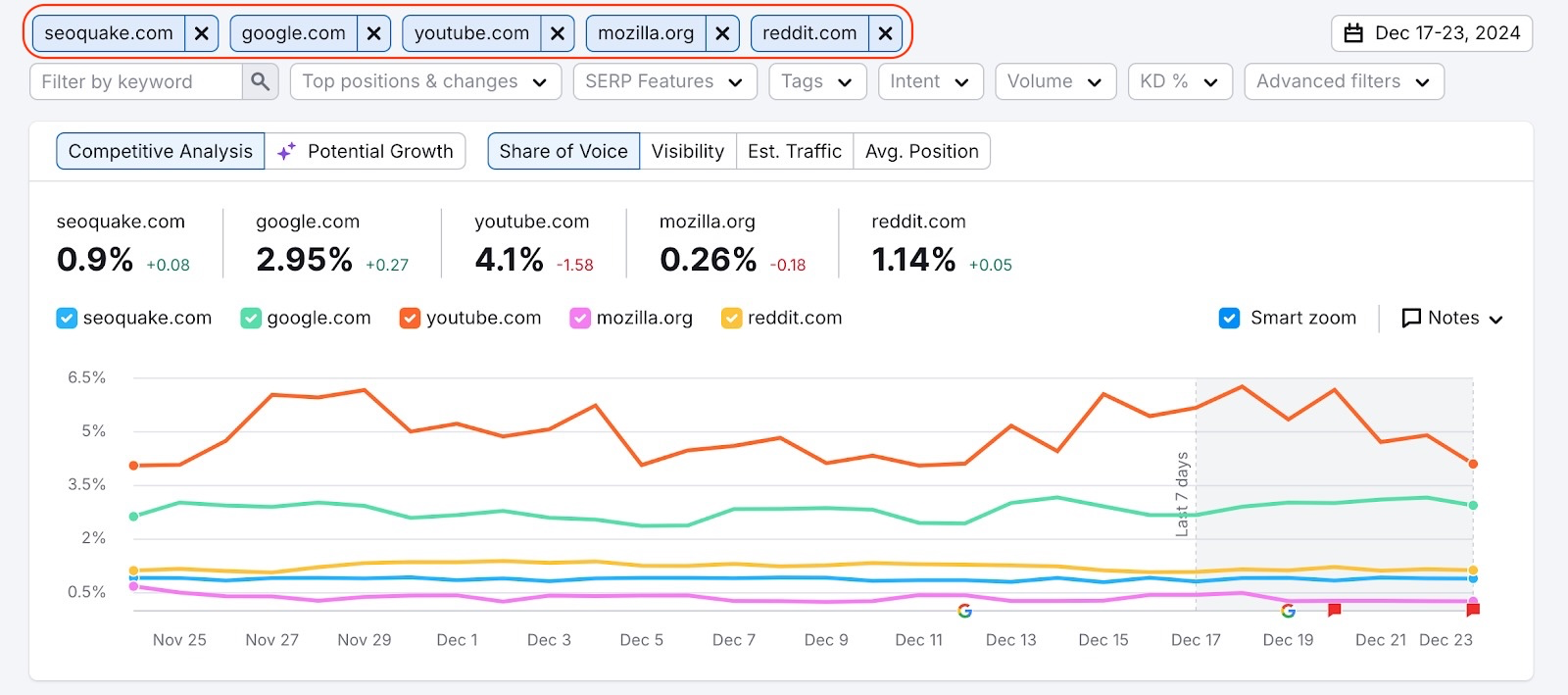
Step-by-step
How to Find Keyword Cannibalization in Semrush
- 01
Open Position Tracking > Cannibalization report
Open Position Tracking > Cannibalization report and select the project, account, property, or crawl target that owns the data for this task.
- 02
Confirm the scope before changing anything
Check the selected target, date range, location, device, audience, or crawl configuration. Use a focused group of tracked keywords so the affected pages are meaningful.
- 03
Configure the task-specific setting
Use the relevant control to set up the task. Keep the configuration focused on one question so the result remains interpretable.
- 04
Review affected keywords and URLs
Read the output with the active filters and comparison context in view. Inspect a representative row, page, event, or contact before drawing a conclusion.
- 05
Save the useful view and document the decision
Save the report, segment, configuration, or export when the product supports it. Record what changed and why so the next review has context.
Read the report
What the main metrics mean
Position
The recorded search position for the tracked or observed keyword.
Visibility
A summary measure of how prominently the selected keyword set appears in search.
Location and device
The search context used for the report, which must match the comparison you are making.
Change
Movement during the selected comparison period, not a guarantee of a lasting trend.
Before you continue
- Confirm the project, property, account, or crawl target before making changes.
- Use the location, device, date range, or audience that matches the decision you need to make.
- Check the result against the underlying data before reporting it or acting on it.
- Document the change so the next review has useful context.
FAQ
Common questions
What do I need before I start in Semrush?
You need access to the relevant Semrush account and the project, property, audience, or crawl target for this task.
Why does my result look incomplete?
Check the selected target, date range, location, device, permissions, and filters. These settings often explain an unexpected result.
Can I change this setup later?
Most settings can be changed, but changes can affect how future data is collected or displayed. Record the original setting before replacing it.
What should I validate before using the result?
Confirm that the setup matches the real question, then review the source data and a representative example before sharing the result or taking action.
Sources and further reading
This guide was checked against Semrush product documentation:
 Reviewed by Filipe Lins DuarteCo-Founder & CEO
Vast experience talking to customers and users to understand what good software looks like. Background spans commercial and product roles.
 Checked by John RiceCo-Founder & CTO
15+ years building tech products and web applications. Conducted hundreds of user interviews to know what a good product looks like.
Every Marketraa page follows our editorial standards.