 Buffer tutorial
How to Schedule Instagram Posts in Buffer
Schedule an Instagram post in Buffer by selecting the connected Instagram channel, choosing a post type, adding the media and caption, then selecting Automatic or Notify Me and a queue slot or specific time.
Quick answer
The quick answer
Open the composer in your Instagram channel’s queue, choose Post, Reel, or Story, then add the caption and media. Select Automatic when the account and post meet Instagram’s publishing requirements. Select Notify Me when you need to finish the post in Instagram, then choose Next Available to use the channel schedule or Set Date and Time for a fixed slot. A notification post is only prepared in Buffer, so it does not go live until you complete it in the Instagram app.
Visual guide
The Buffer path
Click through the real product screens used in the steps below.
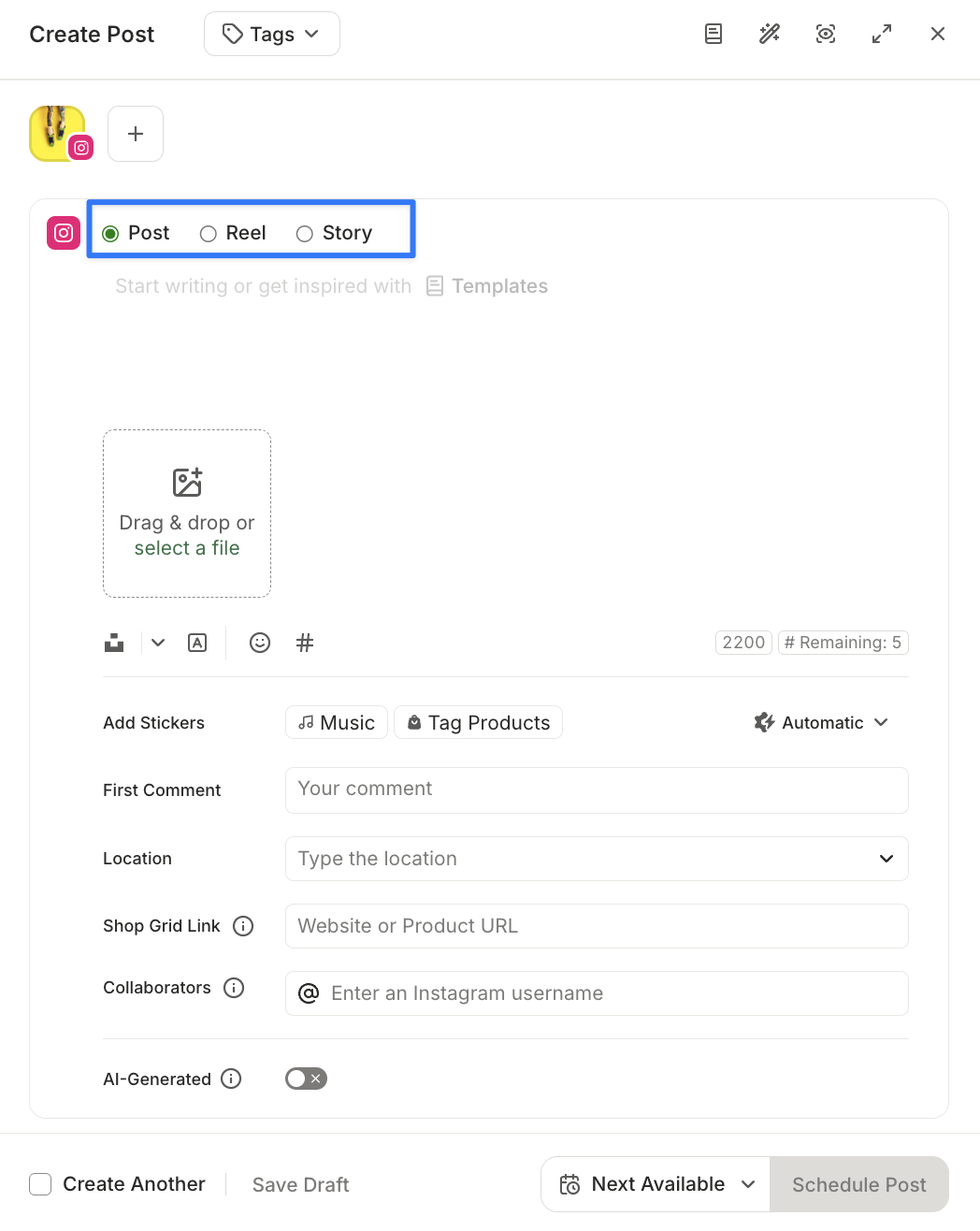
Step-by-step
How to Schedule Instagram Posts in Buffer
- 01
Open the Instagram channel in Publish
In Buffer Publish, choose the Instagram channel you want to use and open the composer at the top of its queue. Check the channel before you begin, especially if you manage several brands. Buffer schedules against the posting schedule and timezone assigned to that individual social channel, not against a workspace-wide calendar setting.
- 02
Choose Post, Reel, or Story and add the content
Choose the Instagram format in the composer, then add the caption and media for that format. Use the preview as a final composition check. The composer, calendar, and queue can show a square thumbnail, while Buffer says the preview shows the image’s true aspect ratio. That distinction is worth checking before you commit a crop-sensitive image.
- 03
Decide whether the post can publish automatically
Choose Automatic when the Instagram account is a Professional account and the post meets Instagram’s supported requirements. Choose Notify Me when you need to add something that Buffer cannot publish automatically, such as music on a post or Story, stickers, product tags, Story links, or Story text. A personal Instagram profile also uses notification publishing because automatic publishing is not available for personal accounts.
- 04
Choose a queue slot or an exact date and time
Use Next Available, also called Add to Queue, when you want Buffer to put the post in the next open slot in that channel’s posting schedule. Use Set Date and Time when this post must go out at a particular moment. Queue posts can move when you change the channel schedule; a post set for a custom date and time does not use a schedule slot and stays at the selected time.
- 05
Verify the scheduled state and finish notification posts on mobile
Review the queued item for the right channel, time, format, and publishing mode. An Automatic post should publish at its scheduled time. A Notify Me post sends a reminder to the linked device instead. Open that push notification and finish publishing in Instagram. Buffer’s Sent status only confirms that it sent the reminder for a notification post, not that the Instagram post is live.
Read the report
What the main metrics mean
Automatic
Buffer publishes the scheduled post without action at the scheduled time when the connected Instagram account and post meet the platform’s requirements.
Notify Me
Buffer sends a mobile reminder so you can finish the post in Instagram. It is a handoff, not automatic publishing.
Next Available
The next open slot in the posting schedule for the selected social channel. Changing that channel’s schedule can move a queued post.
Custom date and time
A fixed publishing time for one post. It does not occupy a regular posting-schedule slot or move when you revise that schedule.
Before you continue
- Confirm that the selected Buffer channel is the Instagram account you mean to publish from.
- Use a Professional account and an eligible format when you need the post to publish automatically.
- Choose Notify Me deliberately when the post needs Instagram-only features, then confirm a linked device and enabled push notifications.
- Check the channel timezone before relying on a queue slot or a custom publishing time.
- For a notification post, verify the final post in Instagram rather than treating Buffer’s reminder status as publication.
FAQ
Common questions
Can Buffer schedule Instagram posts automatically for a Creator account?
Yes. Buffer can automatically publish eligible Instagram posts for Professional accounts, which includes both Business and Creator accounts.
Why did my Buffer Instagram post switch from Automatic to Notify Me?
Buffer switches an Instagram post to Notify Me when the account or post does not meet automatic-publishing requirements, such as a Personal account, unsupported media dimensions, or an Instagram-only feature like post music, stickers, or product tags.
Should I use Next Available or Set Date and Time when scheduling Instagram posts in Buffer?
Use Next Available when the post should follow your Instagram channel’s existing posting cadence, and use Set Date and Time when it has to publish at one exact moment. A queue post may move if you later change the channel schedule, while a custom-time post stays fixed.
Does a Sent status in Buffer mean my notification-based Instagram post is live?
No. For a Notify Me post, Sent means Buffer sent the reminder to your phone; you still need to open the notification and complete the post in Instagram.
How many Instagram posts can I keep scheduled in Buffer on the Free plan?
Buffer’s Free plan allows up to 10 scheduled posts in each connected social channel queue at one time. The limit is a stored-queue limit, not a daily or monthly publishing limit.
Sources and further reading
This guide was checked against Buffer product documentation:
 Reviewed by Filipe Lins DuarteCo-Founder & CEO
Vast experience talking to customers and users to understand what good software looks like. Background spans commercial and product roles.
 Checked by John RiceCo-Founder & CTO
15+ years building tech products and web applications. Conducted hundreds of user interviews to know what a good product looks like.
Every Marketraa page follows our editorial standards.