 Buffer tutorial
How to Schedule LinkedIn Posts in Buffer
Schedule a LinkedIn post in Buffer by selecting a connected Page or profile, writing the post in the composer, then choosing a queue slot or a fixed publishing date and time.
Quick answer
The quick answer
Click + New Post in Buffer, use + Channels to select the connected LinkedIn Page or personal profile, and write the post in the composer. Choose Next Available to place it in the channel’s next queue slot, or choose Set Date and Time when it must publish at one fixed moment. Check the channel timezone before scheduling, because that setting controls when the LinkedIn post publishes.
Visual guide
The Buffer path
Click through the real product screens used in the steps below.
Step-by-step
How to Schedule LinkedIn Posts in Buffer
- 01
Confirm the LinkedIn channel is connected
Buffer can schedule to LinkedIn Pages and personal profiles, but they are separate channels. Before writing the post, confirm that the Page or profile you mean to publish from appears in Buffer. To connect a Company Page or Showcase Page, the LinkedIn account authorizing Buffer must have Super Admin access to that Page. A personal LinkedIn profile can be connected by authorizing that profile.
- 02
Open the composer and choose the LinkedIn Page or profile
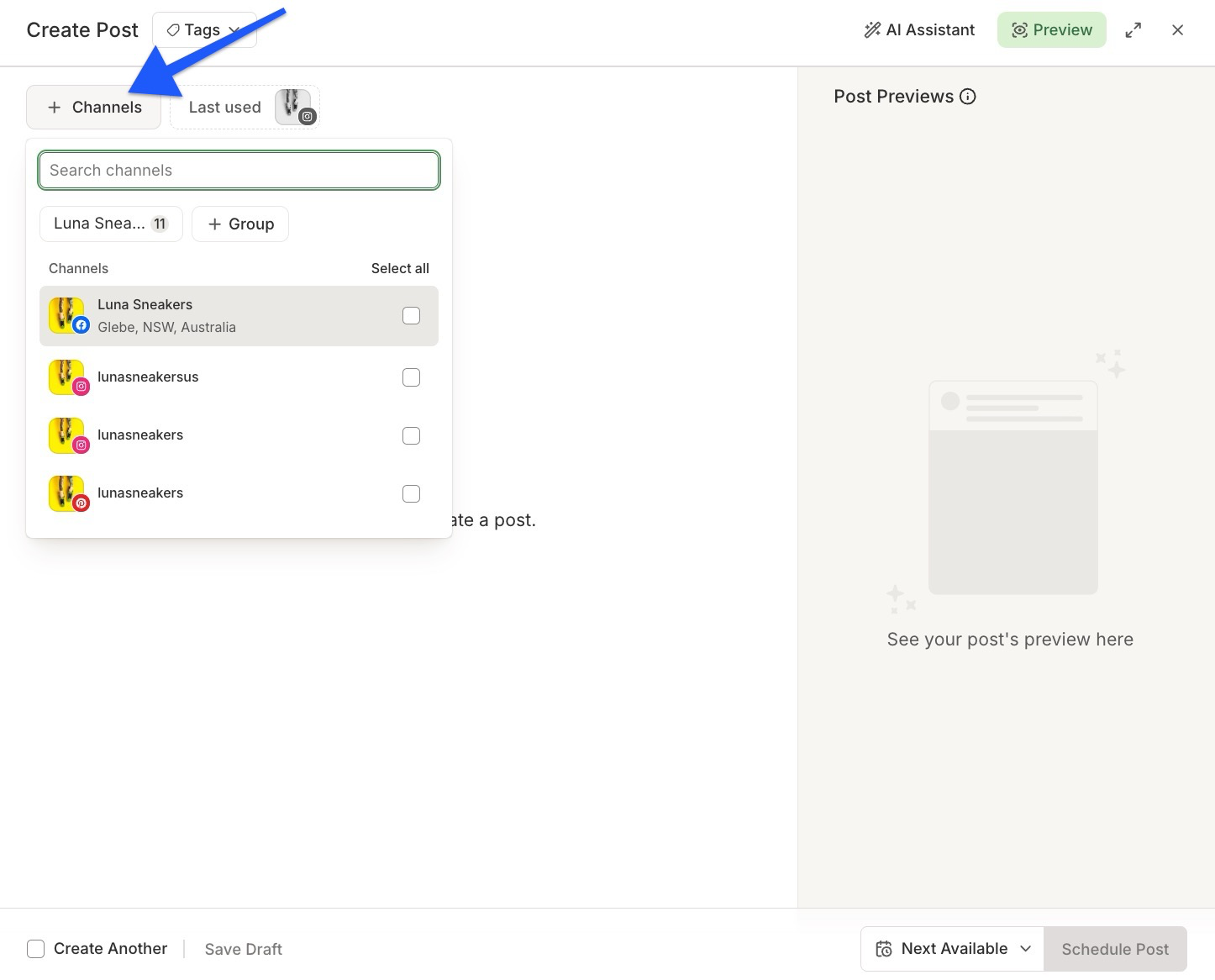
Click + New Post in the Buffer dashboard to open the composer, then click + Channels and select the relevant LinkedIn channel. Do not rely on the Last used suggestion if you manage several brands or both a personal profile and a Company Page. The selected channel determines where the post will publish and which LinkedIn-specific options are available.
- 03
Write the LinkedIn post and review the preview
Add the post text and any supported media, then review the LinkedIn preview before setting a time. Buffer documents support for text, images, GIFs, PDFs, videos, and link previews on LinkedIn. If you are scheduling a PDF document, add its document title before choosing Schedule or Save. LinkedIn polls and posts to the Life tab are not supported through Buffer.
- 04
Choose Next Available or Set Date and Time
Choose Next Available when this post should fill the next open slot in the LinkedIn channel’s posting schedule. Choose Set Date and Time when the post must publish at an exact date and time, such as for an event announcement. Next Available requires posting times on the selected channel. A queue post can move if you later revise the posting schedule; a custom-time post keeps its selected time.
- 05
Check the channel timezone and confirm the queued post
Select Schedule Post, then open the LinkedIn channel’s queue to check the channel, content, and publishing time. Buffer publishes according to the channel timezone, even when the calendar or composer displays your browser’s local timezone for reference. Review the individual channel queue when you need to confirm the time that will govern publication.
Read the report
What the main metrics mean
Next Available
The earliest open slot in the selected LinkedIn channel’s posting schedule. It is useful for work that should follow your normal publishing cadence.
Set Date and Time
A fixed date and time for one LinkedIn post. Buffer labels this type of queue item Custom, and it does not move when you edit the channel posting schedule.
Channel timezone
The timezone that controls when the LinkedIn post publishes. It can differ from the time shown in your browser or Buffer calendar.
First comment
A paid-plan option to publish one comment from the same LinkedIn Page or profile at the same time as the post. It cannot be scheduled separately for a later time.
Before you continue
- Confirm that the selected Buffer channel is the intended LinkedIn Page or personal profile.
- Verify Super Admin access before trying to connect or refresh a LinkedIn Company Page or Showcase Page.
- Review the LinkedIn preview and include a document title when scheduling a PDF document.
- Use Next Available only when the channel has posting times configured; otherwise, select a fixed date and time.
- Check the LinkedIn channel queue and its timezone before treating the displayed browser time as the publication time.
FAQ
Common questions
Can I schedule posts to both a LinkedIn personal profile and a Company Page in Buffer?
Yes. Buffer can schedule posts to LinkedIn personal profiles and Company Pages, provided each destination is connected as its own channel.
Why is my LinkedIn Company Page missing when I try to connect it to Buffer?
A LinkedIn Company Page is missing from Buffer’s connection list when the LinkedIn account authorizing Buffer does not have Super Admin access to that Page or is signed in to the wrong profile.
Should I use Next Available or Set Date and Time for a LinkedIn launch announcement in Buffer?
Use Set Date and Time for a LinkedIn launch announcement that must publish at one exact moment. Next Available is the better choice for routine posts that should follow the channel’s recurring posting schedule.
Can I schedule a LinkedIn PDF carousel in Buffer from my phone?
Buffer supports scheduling one LinkedIn PDF document per post on the web version of Buffer, while mobile support for document scheduling is not currently available according to Buffer’s LinkedIn documentation.
Why does the time on my scheduled LinkedIn post look different in Buffer?
A scheduled LinkedIn post publishes according to its Buffer channel timezone, even if the calendar or composer displays the time in your browser’s local timezone.
Sources and further reading
This guide was checked against Buffer product documentation:
 Reviewed by Filipe Lins DuarteCo-Founder & CEO
Vast experience talking to customers and users to understand what good software looks like. Background spans commercial and product roles.
 Checked by John RiceCo-Founder & CTO
15+ years building tech products and web applications. Conducted hundreds of user interviews to know what a good product looks like.
Every Marketraa page follows our editorial standards.