 Ahrefs tutorial
How to Add Keywords to Ahrefs Rank Tracker
Learn how to add keywords to an Ahrefs Rank Tracker project, choose locations and devices, and organize your keyword list with tags.
Quick answer
The quick answer
Open Rank Tracker, select the right project, then use the Add Keywords action in the Keywords report. Enter or paste the terms, select the locations and devices you need, add tags if useful, and save. Rank Tracker only reports on keywords that you add to that project.
Visual guide
The Ahrefs path
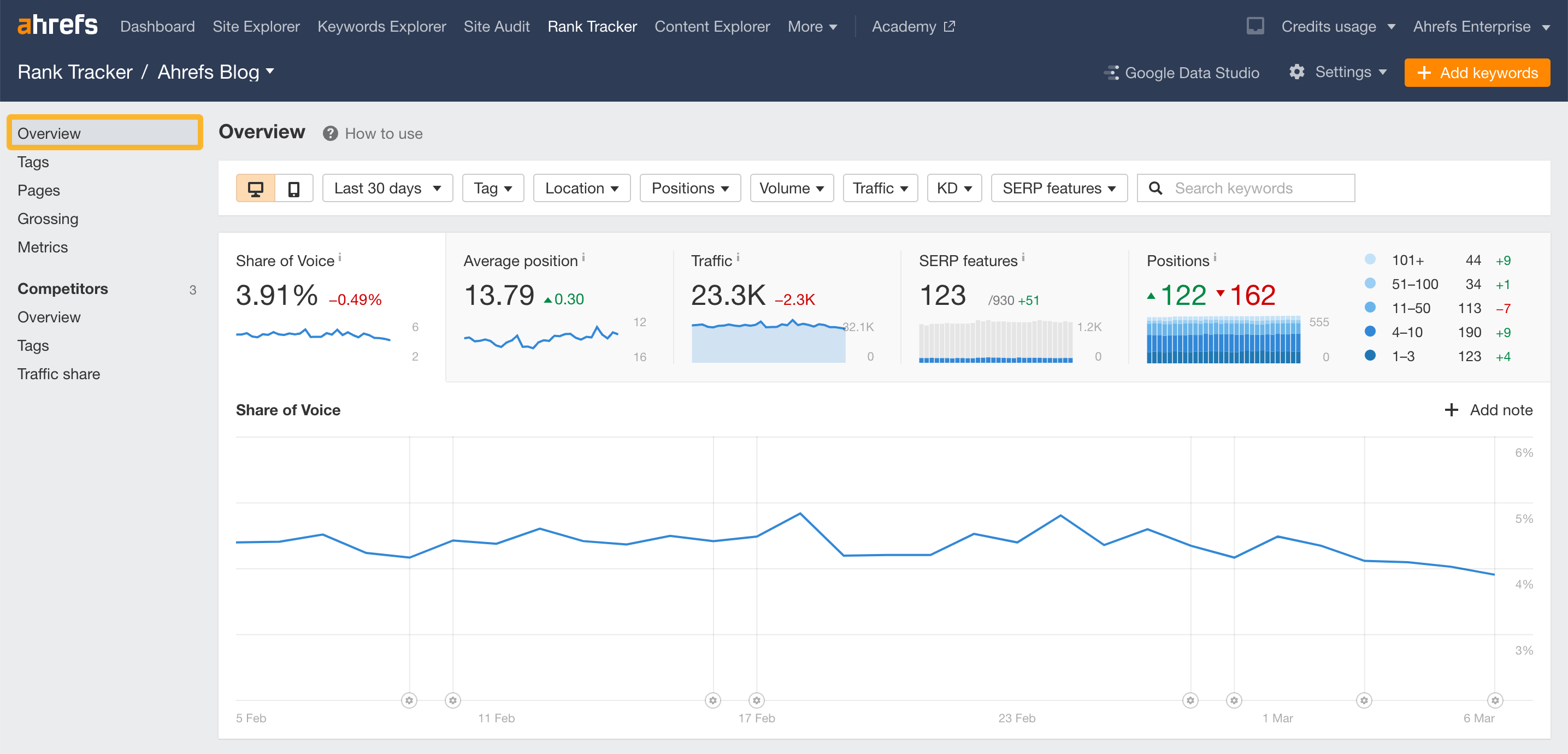
Click through the real product screens used in the steps below.
Step-by-step
How to Add Keywords to Ahrefs Rank Tracker
- 01
Open Rank Tracker and select the project
In Ahrefs, open Rank Tracker and choose the project for the website you want to monitor. Confirm the target domain before adding anything, because a Rank Tracker keyword list belongs to that specific project.
- 02
Open the Keywords report and choose Add Keywords
Go to the project’s Keywords report and select Add Keywords. This is the workflow for adding terms to an existing Rank Tracker project.
- 03
Paste or type the keywords you want to track
Enter one keyword per line or paste a prepared list. Keep the list intentional: use Rank Tracker for terms you want to monitor over time, rather than as a complete database of every query Ahrefs has found for the site.
- 04
Choose the location and device settings
Set the market where you want rankings checked. Ahrefs supports country, state, city, ZIP code, and postal-code tracking. Include desktop, mobile, or both only when that view will affect a real reporting decision.
- 05
Save the keywords and organize them with tags
Add tags for useful groups such as a product line, content cluster, or campaign. After saving, use the Keywords and Overview reports to review the tracked list and wait for Rank Tracker data to update before interpreting movement.
Read the report
What the main metrics mean
Tracked keywords
The count of terms deliberately added to this Rank Tracker project.
Location
The geographic market used for the ranking check.
Device
Whether the report shows desktop or mobile ranking data.
Tag
A label used to group and filter related tracked keywords.
Before you continue
- Add keywords to the correct project and target domain.
- Use the location your customers actually search from.
- Track desktop and mobile separately when both matter.
- Tag terms by a real reporting group, not by one-off labels.
FAQ
Common questions
Can I add multiple keywords to Ahrefs Rank Tracker at once?
Yes. The Add Keywords workflow accepts a pasted keyword list, so you can add several terms to the same project in one action.
Can I track the same keyword in different locations?
Yes. Rank Tracker lets you choose locations as specific as a state, city, ZIP code, or postal code. Treat each location as its own search context when you interpret results.
Does Ahrefs Rank Tracker show every keyword my website ranks for?
No. Rank Tracker shows the keywords you add. For Ahrefs’ broader database of a site’s observed rankings, use Site Explorer > Organic Keywords.
Can I add historical data when I add a keyword?
Ahrefs says you can enable Import history when adding keywords to new or existing projects. The imported data comes from Site Explorer and has location and device limitations, so read the Help Center notes before comparing it with Rank Tracker data.
Sources and further reading
This guide was checked against Ahrefs product documentation:
 Reviewed by Filipe Lins DuarteCo-Founder & CEO
Vast experience talking to customers and users to understand what good software looks like. Background spans commercial and product roles.
 Checked by John RiceCo-Founder & CTO
15+ years building tech products and web applications. Conducted hundreds of user interviews to know what a good product looks like.
Every Marketraa page follows our editorial standards.